
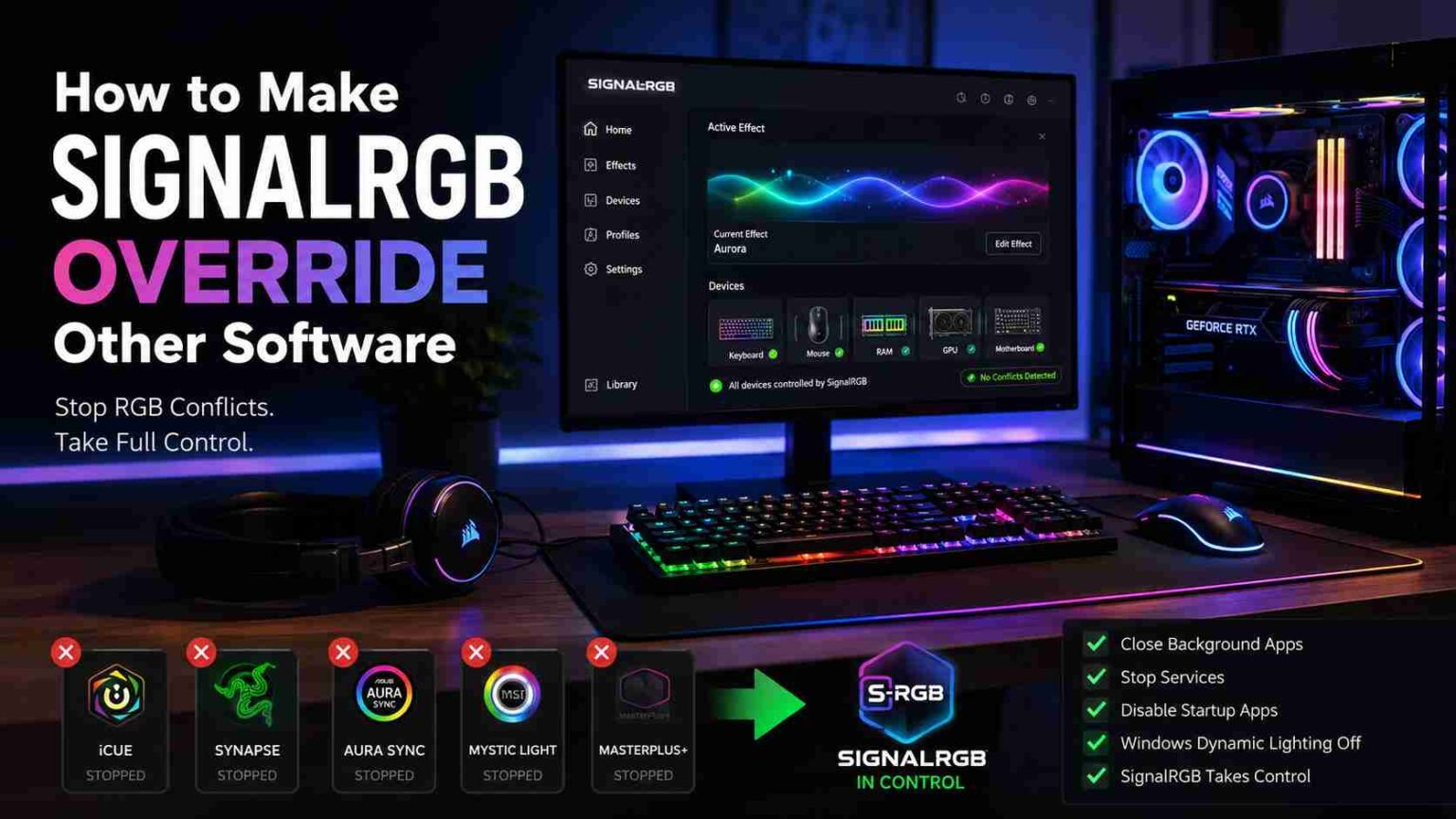
To make SignalRGB override other RGB software, you need to fully close or disable every other lighting app on your PC, stop their background services from running, and set SignalRGB as the only program with access to your devices. Simply closing the other app’s window is usually not enough, since most RGB software keeps a service running in the background even after the main window is shut. That hidden service is what keeps blocking SignalRGB from taking control.
Here is exactly how to fix it, step by step.
Why SignalRGB Gets Blocked in the First Place
RGB devices can only take direct commands from one program at a time. When two apps both try to send lighting signals to the same keyboard, GPU, or RAM module, the hardware doesn’t know which instruction to follow. This is why you see symptoms like:
- Lights flickering or changing color rapidly for no reason
- A device showing the wrong color or getting stuck on one effect
- SignalRGB not detecting a device at all, even though it’s plugged in
- Profiles resetting themselves a few seconds after you apply them
This isn’t a bug in SignalRGB. It’s a hardware-level conflict. Manufacturer software like Corsair iCUE, Razer Synapse, ASUS Armoury Crate (Aura Sync), and MSI Mystic Light are all built to assume they have exclusive control, and most of them fight to keep it even when you’re not actively using them.
Step 1: Identify Every RGB App That Might Be Running
Before you can stop the conflict, you need to know what’s causing it. Common culprits include:
| Brand | Software | Notes |
| Corsair | iCUE | Runs a persistent background service even after the window is closed |
| Razer | Synapse | Ties lighting control to account login, keeps a background helper active |
| ASUS | Armoury Crate / Aura Sync | Often set to auto-launch with Windows |
| MSI | Mystic Light | Frequently bundled inside Dragon Center or Center software |
| Cooler Master | MasterPlus+ | Background process can silently block device access |
| ASRock | Polychrome RGB | Service can persist even after the app is closed |
| SteelSeries | GG / Engine | Controls peripherals and can override SignalRGB if left running |
If you have a prebuilt PC or a motherboard from a major manufacturer, there’s a good chance one of these came preinstalled and is running quietly in the background without you realizing it.
Step 2: Fully Close (Not Just Minimize) Conflicting Software
Closing the window of an RGB app rarely stops its background service. To actually shut it down:
- Open Task Manager (Ctrl + Shift + Esc).
- Go to the Processes tab and look for the app name (iCUE, Synapse, Armoury Crate, etc.).
- Right-click and select End Task.
- Check the Services tab too. Many of these programs install a Windows service (for example, “Corsair Service”) that restarts the app automatically even after you’ve ended the process.
- If a service is present, right-click it, choose Stop, and later set its startup type to Disabled in the Services app (services.msc) for a permanent fix.
Step 3: Disable Startup Launch or Uninstall the Other App
Ending the process manually every time you boot your PC gets old fast. For a setup that actually sticks:


- Disable it from startup: Open Task Manager > Startup Apps tab, find the RGB software, and disable it. This stops it from launching automatically, though you may still need to stop its Windows service separately.
- Uninstall it completely: If you don’t need the manufacturer app for anything else (like fan curve control or macro programming), uninstalling it is the most reliable fix. It removes the background service entirely, so there’s nothing left to conflict with SignalRGB.
- Keep it, but disable only the lighting module: Some software, like iCUE or Armoury Crate, lets you turn off just the RGB/lighting control feature while keeping the rest of the app (fan control, performance monitoring) active. This is the best option if you rely on the app for non-lighting features.
Step 4: Let SignalRGB Handle the Conflict Automatically
SignalRGB has a built-in conflict detector. When you launch it, if it finds another RGB program actively controlling a device, it shows a popup listing the conflicting software and gives you the option to close it directly from that window.
There’s also a setting inside SignalRGB to automatically close conflicting programs on launch. This is convenient, but it can cause problems in one specific situation: if you’ve deliberately disabled a device inside SignalRGB (for example, because you want to keep using your keyboard’s official software for a feature SignalRGB doesn’t support, like an LCD screen or macro keys), SignalRGB may still try to close that program because it doesn’t know you did this on purpose. In that case, turning off the “automatically close conflicting programs” setting resolves the issue, since it stops SignalRGB from interfering with an app you’re intentionally running alongside it.
Step 5: Check Windows Dynamic Lighting (Windows 11 Only)
If you’re on Windows 11, there’s a lesser-known conflict source: Windows Dynamic Lighting. This is a built-in operating system feature, not a third-party app, that lets Windows itself control compatible RGB devices directly. It can compete with SignalRGB even after every manufacturer app is closed.
To disable it:
- Go to Settings > Personalization > Dynamic Lighting.
- Turn the toggle off.
This step is easy to miss because it doesn’t show up in Task Manager as a normal application, so people troubleshooting RGB conflicts often overlook it entirely.
Step 6: Restart SignalRGB After Clearing Conflicts
Once the other software and its services are closed, restart SignalRGB itself rather than just re-scanning for devices. SignalRGB grabs control of hardware when it starts up, so if a conflicting program was still holding a device when SignalRGB launched, simply closing that program afterward won’t hand control over automatically. A fresh restart forces SignalRGB to claim the device correctly.
Common Mistakes That Keep the Conflict Going
- Assuming “closed” means “closed.” Many RGB apps minimize to the system tray or keep a background service alive. Check Task Manager, not just your taskbar.
- Forgetting the Windows service. Ending the process in Task Manager doesn’t always stop the associated Windows service, which can relaunch the app on its own.
- Not checking Windows Dynamic Lighting. This one is invisible in most conflict-troubleshooting guides because it isn’t a traditional app.
- Leaving auto-start enabled. Even after a successful fix, the conflicting software can come back after a Windows update or restart if it’s still allowed to launch at boot.
- Running two lighting SDKs at once. If you use both SignalRGB and a tool like OpenRGB simultaneously for different devices, they too can conflict with each other over shared hardware. Only run one controller per device.
When Full Uninstall Isn’t an Option
If you genuinely need the manufacturer software for something SignalRGB can’t do (fan curves, DPI switching, macros, an LCD/OLED screen on a keyboard, and so on), your best approach is a hybrid setup:
- Keep the manufacturer app installed, but disable its lighting control specifically, if that option exists in its settings.
- In SignalRGB, disable any device you’re intentionally leaving under the other software’s control, so SignalRGB stops trying to claim it and stops flagging it as a conflict.
- Turn off SignalRGB’s automatic conflict-closing feature so it doesn’t shut down the app you’re deliberately keeping open.
This lets both programs run side by side, each managing a different function, without fighting over the same lighting controls.
Frequently Asked Questions (FAQs)
Does uninstalling manufacturer software delete my RGB profiles?
Uninstalling apps like iCUE or Armoury Crate removes saved profiles stored inside that software, since they’re kept in its own local database. Any lighting effects you build afterward in SignalRGB are stored separately and are not affected.
Can I run SignalRGB and OpenRGB together?
Only if they’re controlling different devices, since both apps try to claim exclusive access to hardware just like manufacturer software does. Running them on the same device causes the same flickering and detection issues covered above.
Why does SignalRGB lose control after every restart?
This usually means a conflicting service is set to auto-launch at startup and grabs the device before SignalRGB opens. Disable that service’s startup type in Windows Services (services.msc) instead of just closing the app manually each time.
Will disabling Windows Dynamic Lighting affect anything else?
No, it only controls whether Windows itself can talk directly to compatible RGB hardware. Turning it off has no effect on other Windows settings, drivers, or non-lighting features of your devices.
Is it safe to end RGB-related processes in Task Manager?
Yes, ending processes like iCUE.exe or Synapse3.exe only stops the lighting software temporarily and does not harm your system. The process (and its effects) restarts the next time you open the app or reboot, unless you also disable its startup entry.
Why does my keyboard still flicker even after closing everything?
Some keyboards store lighting settings in onboard memory that keeps applying an effect until a new command overwrites it. Open SignalRGB, select the device, and apply any effect to force it to send fresh instructions and stop the flicker.
Quick Troubleshooting Checklist
- [ ] Closed the conflicting RGB app’s process in Task Manager, not just the window
- [ ] Checked and stopped the related Windows service, if one exists
- [ ] Disabled the conflicting app from Windows startup
- [ ] Turned off Windows Dynamic Lighting (Windows 11)
- [ ] Restarted SignalRGB after clearing all conflicts
- [ ] Confirmed the device is actually supported and detected in SignalRGB
- [ ] Adjusted the “auto-close conflicting programs” setting if you’re intentionally running two apps
Getting SignalRGB to fully override other lighting software almost always comes down to background services you can’t see rather than the visible app window. Once those are dealt with, and Windows Dynamic Lighting is checked on Windows 11 systems, SignalRGB should hold control reliably across restarts.