
If your mouse feels stuttery, jumpy, or inconsistent while aiming in Marvel Rivals, the cause is almost always your polling rate, not your PC. Marvel Rivals runs on Unreal Engine, and Unreal Engine has a well-documented history of struggling with mice that report their position more than 500 times per second. The game’s developers added a setting called “High Polling Rate Mouse Experimental Optimization” specifically to deal with this. This guide explains what it does, when to use it, and what to do if it doesn’t fully solve your problem.
What Is a Polling Rate, and Why Does It Matter Here
Polling rate is how often your mouse reports its position to your PC, measured in Hertz (Hz). A 1000Hz mouse sends an update every 1 millisecond. Gaming mice have pushed this much higher in recent years, with 2000Hz, 4000Hz, and even 8000Hz now common on high-end models.
In theory, a higher polling rate means lower input latency and smoother cursor movement. In practice, this only holds true if the game engine can process those updates efficiently. Marvel Rivals often cannot, especially at 4000Hz and above.
Why Marvel Rivals Struggles With High Polling Rates
Unreal Engine was not built with ultra-high polling rate mice in mind. When a mouse reports position too frequently, the engine can misinterpret the flood of input data, introducing unwanted mouse acceleration and micro-stutters during camera movement. This is not something you can fix by editing configuration files, since the issue sits at the engine level rather than in user-accessible settings.
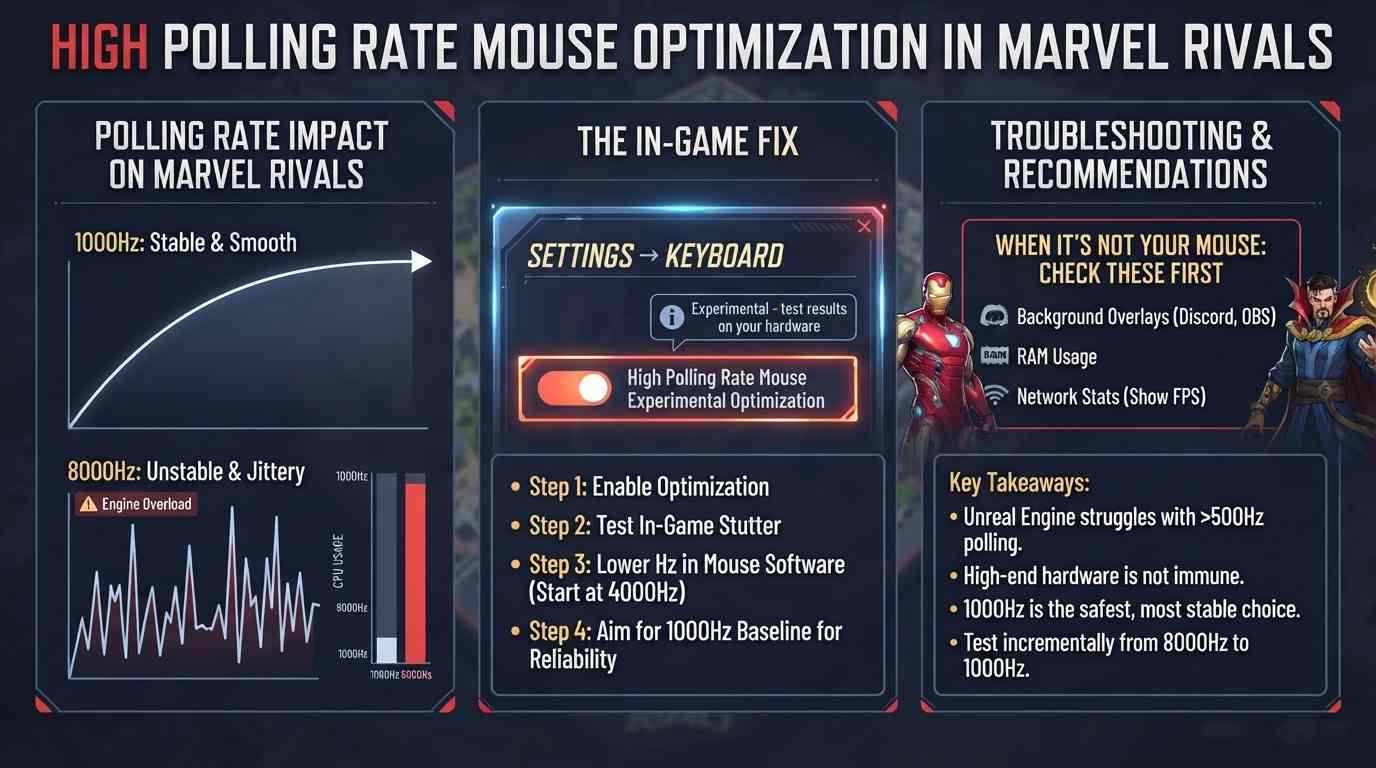
Players have reported this problem consistently since the game’s release. Someone running a 4090 GPU, a 13900K CPU, and 32GB of DDR5 RAM experienced severe stutters that had nothing to do with graphics settings. The fix was lowering their mouse’s polling rate from 8000Hz down to 1000-4000Hz. High-end hardware does not protect you from this issue because it is not a performance bottleneck. It is how the engine handles rapid input data.
The In-Game Fix: High Polling Rate Mouse Experimental Optimization
Marvel Rivals includes a dedicated setting to address this exact problem.
Where to find it: Settings → Keyboard → High Polling Rate Mouse Experimental Optimization
Turning this on helps the engine handle high-frequency input data more gracefully, reducing or eliminating stutter for players using mice above 1000Hz. It will not always produce a perfect fix, but it noticeably improves the experience for most people running mice at 2000Hz to 4000Hz.
Since the setting is labeled “experimental,” treat it as one part of your fix rather than a guaranteed cure. If stutter continues after enabling it, the next step is adjusting your actual mouse polling rate.
Step-by-Step: Diagnosing and Fixing Mouse Stutter
Follow this sequence if you’re experiencing jittery aiming or camera stutter:
- Enable the in-game optimization setting described above. Restart the game after changing it.
- Test your current polling rate. Play a few matches and pay attention to whether stutter happens specifically during fast camera turns.
- If stutter persists, lower your polling rate manually through your mouse software (Logitech G Hub, Razer Synapse, Corsair iCUE, or your manufacturer’s equivalent). Drop from 8000Hz to 4000Hz, then to 2000Hz, then to 1000Hz if needed, testing after each change.
- Isolate the cause. If lowering the polling rate removes the stutter, you’ve confirmed the issue is input-related, not a network or GPU problem. If it doesn’t help at all, look elsewhere: background overlays, capture software, or RAM saturation can all produce similar symptoms.
- Settle on the highest polling rate that stays stable. There’s no universal number that works for everyone, since results depend on your CPU and how it handles input processing alongside the game’s engine calls.
What Polling Rate Should You Actually Use
There’s no single “correct” answer, but here’s what the pattern across player reports and general guidance looks like:
| Polling Rate | Typical Result |
| 1000Hz | Reliable baseline, rarely causes issues on any hardware |
| 2000Hz | Usually stable, occasional stutter on weaker CPUs |
| 4000Hz | Noticeable stutter for some players, fine for others |
| 8000Hz | Frequently unstable, especially during fast camera movement |
1000Hz remains the safest and most widely recommended setting for Marvel Rivals specifically. It’s low enough to avoid triggering the engine’s input-handling issues while still being far more responsive than the 125Hz or 500Hz polling rates common on older mice. If your mouse supports higher rates and you want to experiment, do it gradually and always test in-game rather than assuming higher automatically means better.
It’s also worth noting this isn’t unique to weak hardware. Players running top-tier CPUs and GPUs have reported stutter at 8000Hz that disappeared entirely once they dropped to 1000-2000Hz. The bottleneck is engine-side input handling, not raw processing power.
Other Mouse Settings Worth Checking
While polling rate is the main factor behind stutter, a few related settings affect overall mouse feel and consistency:
- DPI: Keep it in a moderate range, generally between 400 and 800. Extremely high DPI paired with low in-game sensitivity can introduce its own tracking inconsistencies.
- Enhance Pointer Precision: This is a Windows-level setting, not a game setting, and it adds hidden mouse acceleration. Disable it through Windows mouse settings for consistent, predictable aim.
- Mouse acceleration (in mouse software): Turn this off entirely. Acceleration means your cursor moves a different distance depending on how fast you physically move the mouse, which works against consistent aim.
- USB port: Plug high polling rate mice directly into a USB port on your motherboard rather than through a hub, since hubs can introduce additional input lag or instability at higher polling rates.
None of these fixes camera stutter on their own, but skipping them can undermine the benefits of getting your polling rate right.
When the Problem Isn’t Actually Your Mouse
If you’ve enabled the optimization setting and tested multiple polling rates with no improvement, the stutter you’re seeing may not be input-related at all. Common alternative causes include:
- Background overlays or capture software (Discord overlay, GPU software overlays, OBS) competing for system resources during input-heavy moments.
- RAM saturation, which causes hitching when the game streams in new assets or effects, particularly during ability use.
- Network issues, which show up as rubberbanding or delayed abilities rather than cursor stutter specifically. Check in-game Network Stats to rule this out.
Turning on Show FPS and Network Stats in the settings menu before troubleshooting gives you a clearer picture of whether you’re dealing with an input problem, a performance problem, or a connection problem, rather than guessing.
Frequently Asked Questions (FAQs)
Does a higher polling rate actually improve my aim in Marvel Rivals?
Not necessarily. Above 1000-2000Hz, Unreal Engine can introduce stutter and unwanted acceleration that hurts consistency more than the extra input frequency helps. A stable 1000Hz mouse will often feel better than an unstable 8000Hz one.
Will enabling the High Polling Rate Mouse Optimization setting hurt my performance or FPS?
No. It only changes how the engine processes mouse input data and has no meaningful effect on frame rate or GPU load. There’s no downside to leaving it on even if you use a standard 1000Hz mouse.
Why does my expensive gaming mouse stutter in Marvel Rivals but not in other games?
Games like Valorant and CS2 handle high-frequency input differently and don’t show the same issue. Marvel Rivals’ Unreal Engine foundation processes rapid mouse updates less efficiently, so the problem is engine-specific rather than a flaw in your mouse or PC.
Can editing config files fix the high polling rate stutter?
No. This issue sits at the engine level, not in user-accessible settings or config files. The only reliable fixes are enabling the in-game optimization setting and lowering your mouse’s polling rate.
Is 1000Hz too low for competitive play?
No. 1000Hz reports your mouse position every millisecond, which is far faster than human reaction time and well beyond what most competitive shooters require. It remains the safest, most stable choice for Marvel Rivals specifically.
How do I know if my stutter is caused by polling rate and not something else?
Lower your polling rate through your mouse software and test in a match. If the stutter disappears, it’s input-related. If it doesn’t change at all, check background overlays, RAM usage, or Network Stats instead.
Quick Reference Summary
- Marvel Rivals runs on Unreal Engine, which struggles with mice polling above 500Hz, causing stutter and unwanted acceleration.
- Enable High Polling Rate Mouse Experimental Optimization under Settings → Keyboard as your first fix.
- If stutter continues, manually lower your mouse’s polling rate through its software, testing from 4000Hz down to 1000Hz.
- 1000Hz is the generally recommended baseline for stability without sacrificing much responsiveness.
- Disable Windows Enhance Pointer Precision and mouse acceleration for consistent tracking.
- If none of this resolves the issue, the cause is likely unrelated to your mouse. Check background software, RAM usage, and network stats instead.
This is a known engine limitation rather than a flaw in your setup, so there’s no need to chase graphics settings or hardware upgrades if stutter only appears during fast mouse movement. Adjusting polling rate and enabling the built-in optimization resolves it for the vast majority of players.