
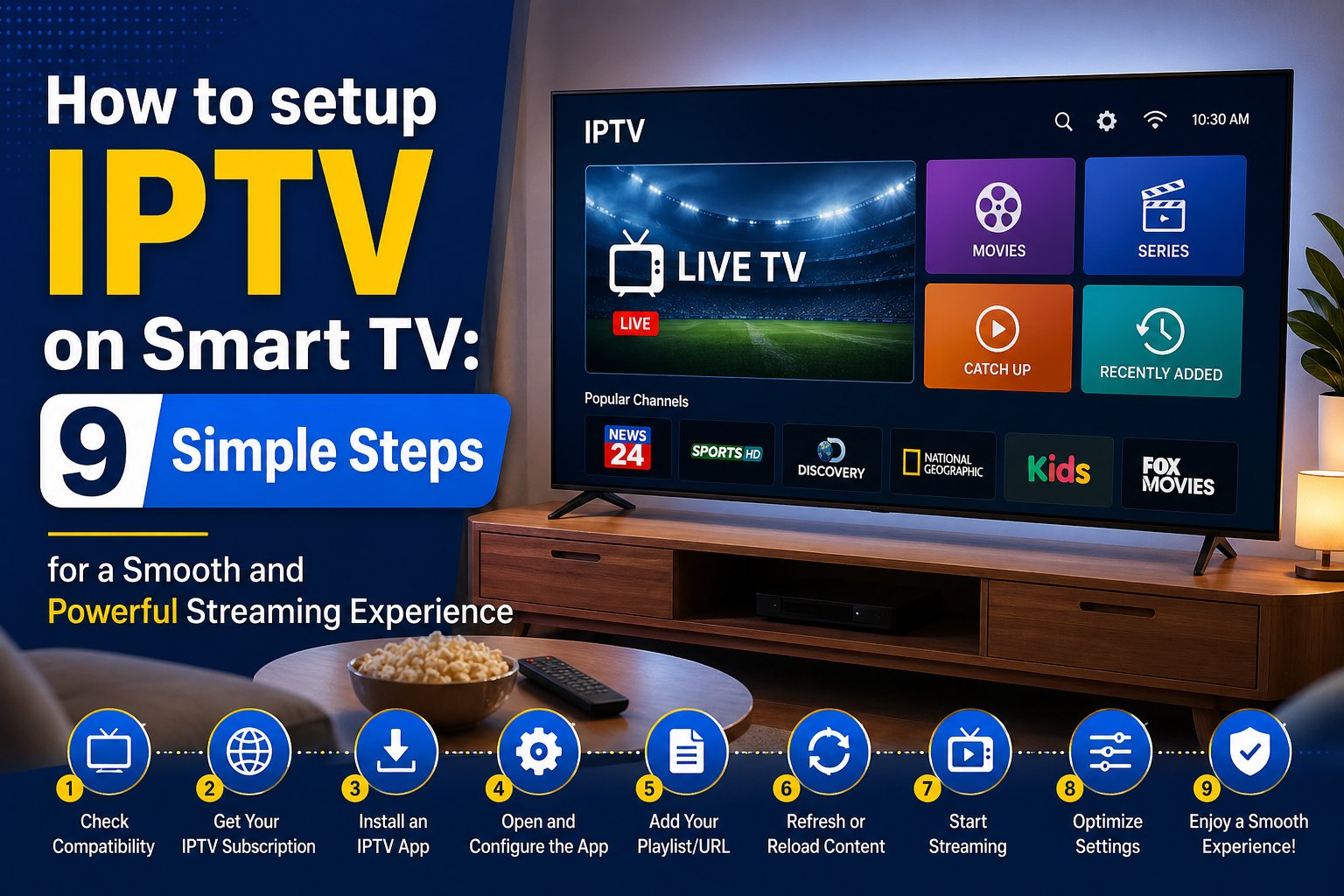
If you are wondering how to setup IPTV on Smart TV, you are not alone. Many people are moving away from traditional cable services and switching to IPTV for more flexibility, affordability, and content variety. IPTV, or Internet Protocol Television, allows you to stream TV channels and on-demand content using your internet connection instead of satellite or cable.
Setting up IPTV on a Smart TV may sound technical, but it is actually quite simple when you follow the right steps. Whether you own a Samsung, LG, Android TV, or any other Smart TV brand, the process is very similar. Once configured properly, you can enjoy thousands of channels, movies, and shows right from your living room.
In this guide, you will learn everything you need to know about how to setup IPTV on Smart TV in a clear and easy way.
What You Need Before Setting Up IPTV
Before starting the process of how to setup IPTV on Smart TV, it is important to gather all the necessary requirements. Having everything ready will make the setup smooth and hassle-free.
First, you need a stable and high-speed internet connection. IPTV streaming depends heavily on internet speed, so ensure you have at least 10 Mbps for HD streaming. Second, you need a Smart TV that supports app installations. Most modern Smart TVs come with built-in app stores.
You will also need an active IPTV subscription from a reliable provider. This usually includes an M3U playlist URL. Finally, you need an IPTV player app installed on your TV to run the service.
Understanding IPTV Formats and Access Methods
When learning how to setup IPTV on Smart TV, it is essential to understand how IPTV services are delivered. IPTV providers typically offer access in different formats, and knowing which one you have will determine how you set it up.
The most common format is the M3U playlist URL. This is a link that contains all your channels and content. Another method is Xtream Codes API, which requires a username, password, and server URL. Some providers also offer dedicated apps.
Understanding these formats helps you choose the correct setup method and avoid confusion during installation.
Choosing the Right IPTV App for Smart TV
A key step in how to setup IPTV on Smart TV is selecting the right IPTV player. Smart TVs do not usually support IPTV services directly, so you need an app to stream content.
Popular IPTV apps include Smart IPTV, IPTV Smarters, and TiviMate. Each app has its own interface and features, but all serve the same purpose of playing IPTV content.
When choosing an app, consider ease of use, compatibility with your TV, and support for your IPTV format. A good app ensures smooth playback and better user experience.
How to setup IPTV on Smart TV Using Smart IPTV App
One of the easiest methods for how to setup IPTV on Smart TV is using the Smart IPTV app. This app is widely used and supported on many Smart TVs.
First, download the Smart IPTV app from your TV’s app store. Once installed, open the app and note the MAC address displayed on the screen. This address is important for uploading your playlist.
Next, visit the Smart IPTV website on your computer or mobile device. Enter your TV’s MAC address and upload your M3U playlist URL. After saving the changes, restart the app on your TV.
Your IPTV channels should now load and be ready to watch.
How to setup IPTV on Smart TV Using IPTV Smarters
Another popular method for how to setup IPTV on Smart TV is through IPTV Smarters. This app offers a modern interface and supports multiple login methods.
After installing IPTV Smarters, open the app and select “Login with Xtream Codes API.” Enter your username, password, and server URL provided by your IPTV service.
Once logged in, the app will automatically load your channels, movies, and series. The interface is user-friendly, making it easy to navigate through content.
Setting Up IPTV on Android Smart TV
If you have an Android Smart TV, the process of how to setup IPTV on Smart TV becomes even easier due to the flexibility of the Android system.
Go to the Google Play Store on your TV and download an IPTV app such as TiviMate or IPTV Smarters. Install the app and open it.
Enter your IPTV credentials or M3U URL, depending on your provider. Once the playlist loads, you can start streaming immediately.
Android TVs also allow advanced customization, giving you more control over your IPTV experience.
Setting Up IPTV on Samsung Smart TV
Samsung Smart TVs use the Tizen operating system, which slightly changes the process of how to setup IPTV on Smart TV.
You can download compatible IPTV apps like Smart IPTV or IPTV Smarters from the Samsung App Store. After installation, follow the same steps of entering your playlist URL or login details.
Samsung TVs are known for their performance, so once set up, IPTV runs smoothly with minimal buffering if your internet connection is stable.
Setting Up IPTV on LG Smart TV
LG Smart TVs run on webOS, and the setup process for how to setup IPTV on Smart TV is also straightforward.
Open the LG Content Store and install an IPTV app like Smart IPTV or similar alternatives. Launch the app and upload your playlist using the provided instructions.
LG TVs offer excellent picture quality, making IPTV streaming an enjoyable experience once properly configured.
Using External Devices for IPTV Setup
If your Smart TV does not support IPTV apps, you can still learn how to setup IPTV on Smart TV using external devices.
Devices such as Amazon Fire Stick, Android TV Box, or Chromecast can be connected to your TV. These devices support a wide range of IPTV apps and provide better performance.
After connecting the device, install your preferred IPTV app and enter your subscription details. This method is highly effective and widely used.
Optimizing Internet Connection for IPTV
A stable internet connection is essential when learning how to setup IPTV on Smart TV. Without it, you may experience buffering or interruptions.
Using a wired Ethernet connection is recommended for better stability. If you are using Wi-Fi, ensure your router is close to the TV and free from interference.
Upgrading your internet plan or reducing the number of connected devices can also improve performance.
Troubleshooting Common IPTV Setup Issues
While learning how to setup IPTV on Smart TV, you may encounter some common issues. These include channels not loading, buffering, or login errors.
First, check your internet connection and ensure it is working properly. Next, verify that your IPTV credentials or playlist URL are correct.
Restarting your TV and app can also fix temporary issues. If the problem persists, contact your IPTV provider for assistance.
Benefits of Setting Up IPTV on Smart TV
Understanding how to setup IPTV on Smart TV opens the door to many benefits. IPTV offers a wide range of channels from different countries, including sports, movies, and live TV.
It is often more affordable than traditional cable services and provides greater flexibility. You can watch content anytime and anywhere with an internet connection.
Additionally, IPTV allows customization, giving you control over what you watch and how you watch it.
Safety and Legal Considerations
When learning how to setup IPTV Subscription on Smart TV, it is important to consider safety and legality. Always choose a reputable IPTV provider that operates legally.
Using unauthorized services can lead to poor quality and potential risks. Protect your privacy by using secure connections and avoiding suspicious apps.
Being cautious ensures a safe and enjoyable IPTV experience.
Conclusion
Learning how to setup IPTV on Smart TV is a valuable skill that can transform your entertainment experience. With the right tools, apps, and internet connection, you can enjoy a wide variety of content without the limitations of traditional TV services.
The process may seem complex at first, but once you follow the steps, it becomes simple and straightforward. From choosing the right app to entering your IPTV details, each step plays a crucial role in ensuring smooth streaming.
Take your time, follow the guide carefully, and soon you will be enjoying seamless IPTV streaming on your Smart TV. The future of television is here, and now you know exactly how to be part of it.